

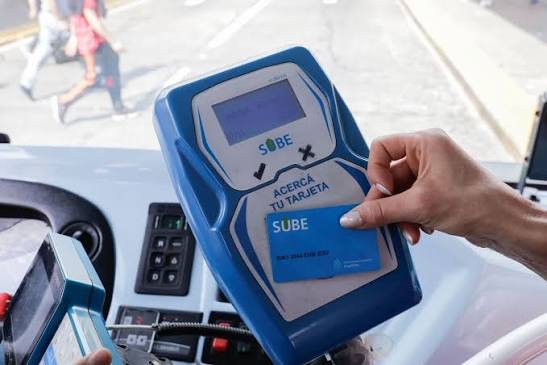
The SUBE app lets you register your transit card, check your balance, load money and review your trips from your phone. You link the card with the 16-digit number printed on it, then manage everything from your account. The app works on Android phones. iPhones do not support the NFC functions.
This guide shows you what the app does, how to set it up and how to read your balance and trip history without confusion.
What the Mi SUBE app does
The official SUBE app, published through argentina.gob.ar, replaces a pile of separate tasks. Before it, you needed a kiosk, a terminal or a web portal for almost everything. Now your phone covers most of it.
You can use it to:
- Register and link your SUBE card to your account.
- Check your balance and your last trip.
- Load money with a debit card or an electronic wallet.
- Credit balance you loaded online onto your physical card.
- Review your movements and full trip history.
- Check which benefits apply to your card.
- Pay trips from your phone with a digital SUBE card or a QR code, on supported devices.
Note: Names and menus change between app versions. If a button on your screen looks different from the steps below, follow the closest option and confirm details on the official SUBE page at argentina.gob.ar/sube.
What you need before you start
Check three things first.
- An Android phone. The official page lists Android 6 or higher with at least 125 MB of free space. Digital SUBE payments need NFC and Android 8 or higher.
- Your physical SUBE card. You need the 16-digit number printed on it.
- A stable internet connection for registration and loading.
Warning: iPhone users cannot use the NFC features. The official page states that iOS has incompatibilities with the NFC antenna. You can still manage your card through the SUBE web portal.
How to link your SUBE card in the app
Linking takes a few minutes. Follow these steps in order.
Step 1 – Create your account
Install the official app from Google Play. Enter your email address and set a strong password.
Step 2 – Register your card
Type the 16-digit number printed on your card. Then create a 4-digit PIN. Keep that PIN private.
If you receive the Social Rate benefit, the app asks for a PIN managed through Mi ANSES instead. Follow the on-screen prompt.
Step 3 – Confirm the card appears
Open your card list. You should see the card number and its balance status. Repeat the process if you travel with a second card.
How to track your balance
Your balance needs a clear explanation, because the number on screen is not always the number on your card.
SUBE works with an offline logic. The terminal on the bus or at the turnstile reads the balance stored on the card itself. When you load money online, the card does not update until it syncs.
That is why the app talks about “acreditar” (crediting). You load money first. Then you credit it onto the card.
Check your balance with NFC
- Turn on NFC in your phone settings.
- Open the app and choose the balance option.
- Hold the back of your phone against the card.
- Keep both still until the screen shows the result.
This reads the real balance on the card. It also shows your last trip.
Credit a recent load
- Open the app and choose the credit option.
- Hold the card against the back of the phone.
- Wait for the confirmation message.
The official page says you can accumulate up to 40,000 pesos in electronic loads. Limits can change, so verify the current figure in the app before you load a large amount.
Tip: Credit your balance before you leave home. A bus terminal gives you no time to retry.
If you want a plain explanation of how balance checks work across different channels, a guide such as mi sube saldo breaks down the options for regular riders.
How to see your trips and movements
The app keeps a history you can read at any time.
- Last trip. Shows up right after a balance check.
- Movements. Lists your loads and credits.
- Trip history. Shows each trip with its date and fare.
Use the history to catch problems early. If you see a charge for a trip you never took, report it through the official SUBE channels.
Other ways to manage your card
The app is not your only option. Pick the method that fits your phone and habits.
| Method | Works on | Best for |
|---|---|---|
| SUBE app | Android | Balance, loading, history |
| SUBE web portal | Any browser | iPhone users, desktop access |
| Terminals and kiosks | Public points | Cash loads |
| Authorized sale points | Shops with SUBE signs | Cash loads near you |
So, the app is the best method if you own an Android phone. It combines balance, loading and history in one place.
FAQs
Can I use the Mi SUBE app on an iPhone?
No, not for NFC functions. The official page says iOS has incompatibilities with the NFC antenna. Use the web portal instead.
How do I link my SUBE card to the app?
Create an account with your email and a password. Then enter the 16-digit card number and set a 4-digit PIN.
Why does my balance look different from my card?
Online loads need crediting. The card updates only when you hold it against your phone or a terminal.
Is there a limit on how much I can load?
The official page mentions up to 40,000 pesos in accumulated electronic loads. Verify the current limit in the app.
Can I see my past trips in the app?
Yes. The app shows your last trip, your movements and your full trip history.
Final Thoughts
Set up the app once and you will stop guessing your balance at the turnstile. Register your card tonight, run one NFC check and credit anything pending. Next morning, your commute takes one tap.
