

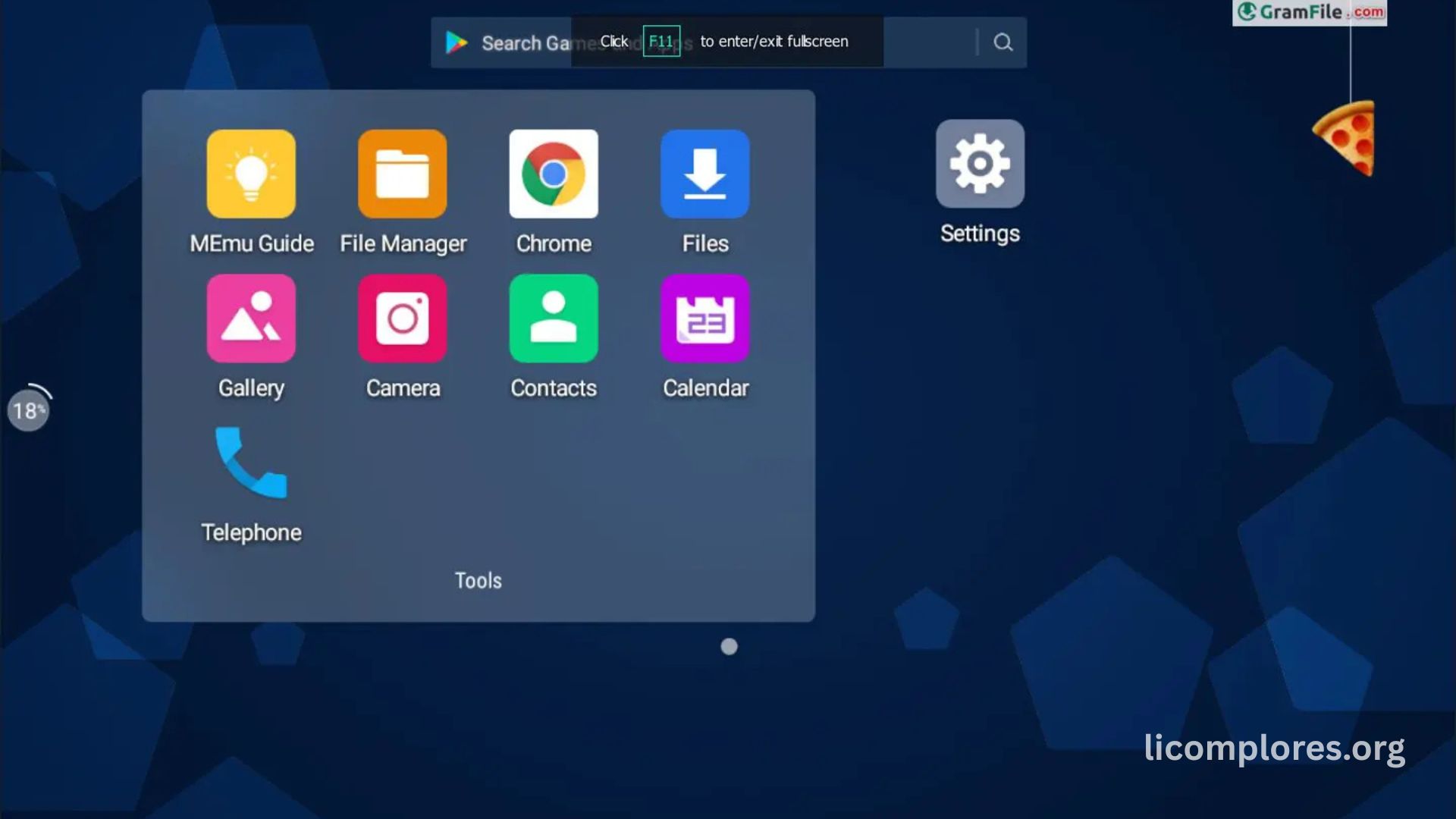
MEmu Play is one of the most widely used Android emulators for Windows users who want to run mobile applications and games on a computer. The software creates a virtual Android environment that allows users to install apps directly from the Google Play Store or through APK files. Gamers especially prefer MEmu Play because it offers improved controls, smoother graphics, and better overall performance than many mobile devices during long gaming sessions. Large screens and customizable keyboard controls also make gameplay more comfortable and accurate for competitive users.
The popularity of Android emulators has increased rapidly as mobile gaming continues growing worldwide. Many players now prefer using a PC setup because it offers higher frame rates, better cooling systems, and stronger hardware performance compared to smartphones. MEmu Play has become a leading choice because of its optimization features, regular updates, and compatibility with modern Android games. The emulator is also useful for developers and content creators who need stable multitasking support while recording gameplay or testing applications.
How MEmu Play Works on Windows PCs
MEmu Play functions by creating a simulated Android operating system inside a Windows computer. It uses virtualization technology to share hardware resources such as CPU power, RAM, and graphics processing between the emulator and the main operating system. This process allows Android applications to run smoothly on desktop systems without needing a physical smartphone. The emulator includes built-in Android environments that can be customized according to performance needs, giving users flexibility when running different games or applications.
The software also supports multiple Android versions, helping users run apps that require older or newer operating systems. Players can create separate instances for different games, making account management easier. MEmu Play includes integrated Google services, which simplifies app installation and login procedures. The emulator’s interface is designed for convenience, allowing users to drag and drop APK files, manage storage, and configure display settings without complicated setup processes. This accessibility has contributed significantly to its growing user base among casual and professional gamers.
Gaming Performance and Graphics Optimization
- MEmu Play improves gaming performance by using PC hardware resources instead of relying only on mobile device limitations.
- The emulator reduces common mobile gaming issues such as overheating, battery drain, and frame lag during long sessions.
- Hardware acceleration and advanced rendering technologies help deliver smoother gameplay and better graphics quality.
- Users can customize CPU cores, RAM allocation, screen resolution, and rendering settings for optimized performance.
- Keyboard mapping and stable frame rates provide better aiming precision, faster reactions, and improved competitive gameplay.
Installation Process and System Requirements
Installing MEmu Play is generally simple and user-friendly for most Windows systems. Users only need to download the official installer, complete the setup process, and launch the emulator to begin using Android applications. During installation, enabling virtualization technology in BIOS settings is often recommended because it significantly improves emulator performance and stability. Without virtualization, some systems may experience lag or slower processing speeds while running demanding applications.
The emulator works best on systems with modern processors, sufficient RAM, and updated graphics drivers. Although low-end computers can still operate the software, gaming performance may be reduced in graphics-intensive titles. Storage availability is another important factor because modern Android games require large installation files and regular updates. Stable internet connectivity is also essential for online multiplayer games and downloading applications. Users frequently improve emulator stability by updating drivers, closing background programs, and maintaining balanced resource allocation inside the emulator settings.
Features That Make MEmu Play Stand Outes
Compatibility is a major factor when selecting an Android emulator, and MEmu Play supports many of the world’s most popular mobile games. Titles such as Free Fire, PUBG Mobile, Mobile Legends, and Call of Duty Mobile are frequently played through the emulator because of its optimized controls and stable performance. Action games particularly benefit from keyboard and mouse support because accurate aiming and fast movement are easier to achieve on a PC setup.
The developers behind MEmu Play regularly release updates to improve game compatibility and fix stability issues. These updates help reduce crashes, black screen problems, and performance errors that may occur after major Android game patches. Some games include emulator detection systems that can affect matchmaking conditions, making it important for users to understand each game’s policies. Despite these challenges, MEmu Play continues maintaining strong support for a large portion of the Android gaming ecosystem through ongoing software optimization and compatibility improvements.
Security, Stability, and User Reliability
- MEmu Play focuses on providing a secure environment for running Android applications on Windows PCs.
- Users should always download the emulator from official sources to avoid modified or unsafe installation files.
- Regular software updates help improve security, fix vulnerabilities, and maintain compatibility with new Windows versions.
- Improved memory management and virtualization efficiency help reduce crashes, lag, and freezing during gameplay sessions.
- Stability can be enhanced further by updating graphics drivers, enabling virtualization, and balancing CPU and RAM allocation.
Future of Android Emulators and MEmu Play
The future of Android emulators appears strong as mobile gaming continues expanding globally. More players now prefer cross-platform experiences that allow them to switch between mobile devices and computers without losing progress. MEmu Play is adapting to this trend by improving performance optimization, graphics support, and compatibility with newer Android technologies. The growth of esports and competitive mobile gaming also increases demand for reliable emulation software capable of delivering stable high-performance gameplay.
Future emulator development may include AI-assisted optimization, improved rendering systems, and broader compatibility with advanced Android applications. As mobile games become more graphically demanding, emulators will need stronger hardware integration and smarter resource management systems. MEmu Play is expected to continue evolving through frequent updates aimed at improving user experience and gaming efficiency. The increasing popularity of mobile gaming content creation and livestreaming further supports the long-term demand for advanced Android emulation platforms on PC.
Read More: How to get the most exclusive Brainrots in Roblox?
Frequently Asked Questions
What is MEmu Play used for?
MEmu Play is mainly used to run Android games and applications on Windows computers. It allows users to experience mobile apps with keyboard and mouse controls.
Is MEmu Play free to use?
Yes, MEmu Play is available as free software. Users can download and install it without paying subscription fees.
Can MEmu Play run Free Fire smoothly?
Yes, many users play Free Fire smoothly on MEmu Play with proper graphics settings and hardware acceleration enabled.
Does MEmu Play support multiple accounts?
Yes, the emulator supports multi-instance functionality, allowing users to run several Android environments at the same time.
Is virtualization necessary for MEmu Play?
Virtualization is highly recommended because it improves emulator speed, stability, and overall gaming performance.
Can low-end PCs run MEmu Play?
Low-end systems can run the emulator, but demanding games may experience lag or reduced frame rates.
Is MEmu Play safe to install?
The emulator is generally considered safe when downloaded from official sources and kept updated regularly.
Does MEmu Play support game controllers?
Yes, users can connect compatible gamepads and configure controller settings for supported Android games.
Conclusion:
MEmu Play continues establishing itself as a reliable Android emulator for gamers, developers, and content creators seeking improved mobile application performance on PC. Its combination of keyboard mapping, multi-instance support, graphics optimization, and Android compatibility makes it attractive for modern gaming requirements. As mobile gaming continues expanding globally, emulators like MEmu Play are becoming increasingly important for players who want greater control precision and stable gameplay experiences. Continuous software updates and performance enhancements also position the emulator as a strong option within the growing Android emulation industry.
