

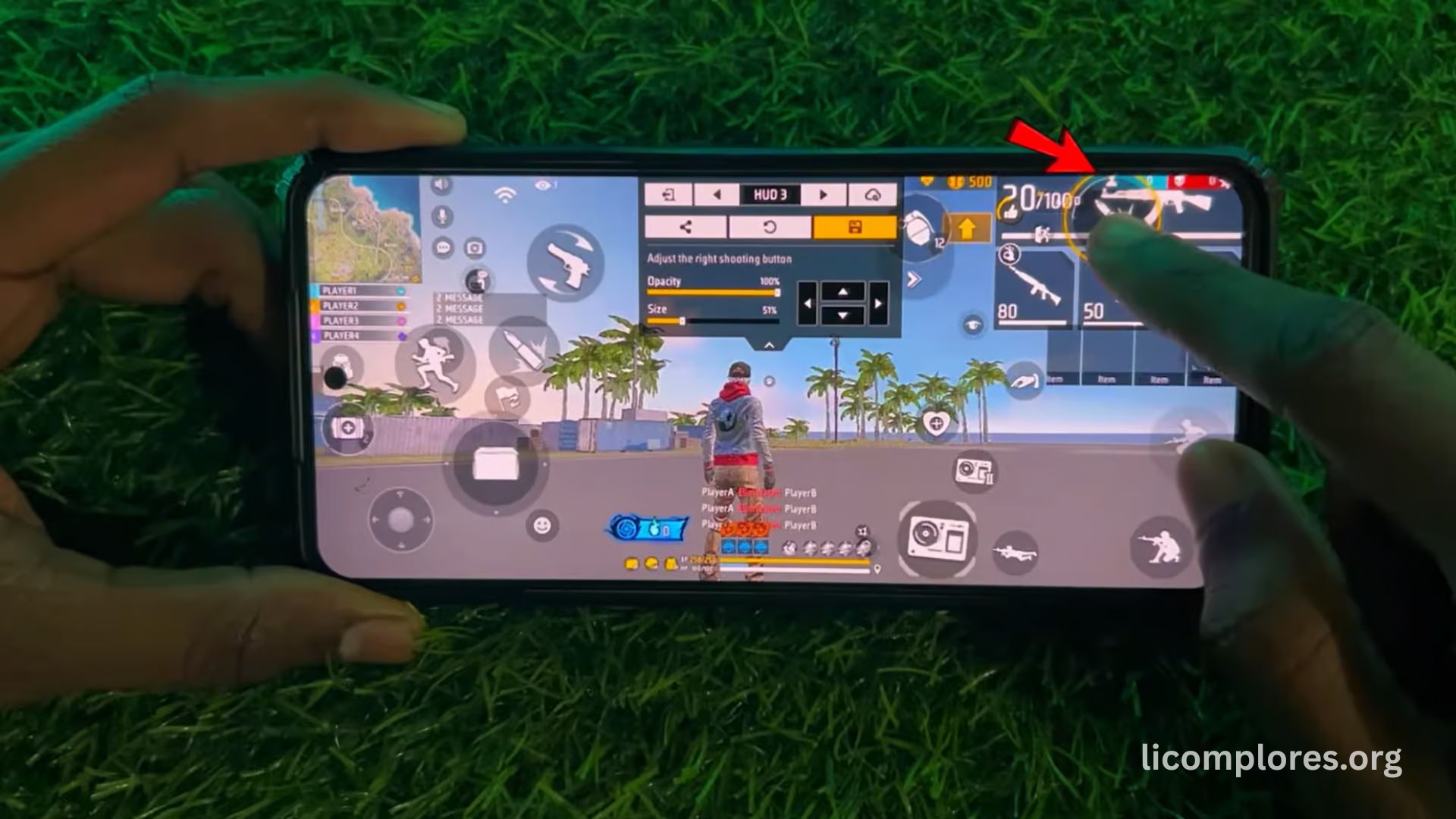
Best Free Fire sensitivity settings for PC emulators play a major role in determining how accurately players aim, control recoil, and respond during fast-paced battles. As more players shift from mobile devices to PC emulators, the importance of optimized sensitivity has increased significantly. Emulator gaming offers better control options, higher frame rates, and smoother gameplay, but without proper sensitivity settings, players may still struggle with inconsistent aim and poor shooting accuracy.
The rise of competitive Free Fire gameplay on PC platforms has made sensitivity optimization a key factor for performance improvement. Players using emulators like BlueStacks, MEmu, and others need carefully balanced settings to match keyboard and mouse controls. Unlike mobile touch controls, emulator setups require different sensitivity adjustments to ensure smooth aiming transitions and stable recoil handling. Understanding how to choose the right sensitivity can significantly improve gameplay consistency and overall competitive performance in ranked matches.
Understanding Sensitivity in Free Fire PC Emulators
Sensitivity in Free Fire refers to how quickly the camera and aim respond to player movements. On PC emulators, sensitivity becomes even more important because mouse input behaves differently compared to touchscreen controls. Players must adjust settings carefully to avoid over-aiming or under-aiming during combat situations. A well-balanced sensitivity setup ensures smooth movement, accurate targeting, and better control during close and long-range fights.
Emulator sensitivity settings are usually divided into multiple categories such as general sensitivity, red dot, scope sensitivity, and sniper sensitivity. Each setting affects a specific aspect of gameplay. For example, general sensitivity controls overall movement speed, while scope sensitivity affects zoom accuracy. Many players experiment with different combinations before finding the ideal setup that matches their hardware and playstyle. Proper understanding of these categories is essential for achieving consistent performance in competitive matches.
Importance of DPI and Mouse Settings
- DPI (dots per inch) is a key factor that directly impacts sensitivity performance in PC emulator gameplay.
- Higher DPI makes mouse movement faster, while lower DPI provides more precise aiming control.
- In Free Fire, balancing DPI with in-game sensitivity helps create smoother and more accurate aiming.
- Mouse settings like polling rate, acceleration, and pointer speed also affect overall aiming stability.
- Proper mouse configuration reduces input delay and improves responsiveness during intense firefights.
Best General Sensitivity Settings for PC Emulators
General sensitivity is one of the most important settings in Free Fire PC gameplay because it controls overall camera movement. A higher general sensitivity allows faster movement and quick enemy tracking, while lower sensitivity provides better stability for accurate aiming. Emulator players usually prefer medium to high sensitivity depending on their system performance and personal control style.
Finding the right balance is important for consistent gameplay. If sensitivity is too high, aiming becomes unstable, especially during long-range combat. If it is too low, reaction speed may decrease during close-range fights. Most experienced players test different settings in training mode before finalizing their configuration. This helps ensure smoother movement and better adaptability in ranked matches.
Red Dot and Scope Sensitivity Optimization
Red dot sensitivity is essential for medium-range combat where quick aim adjustments are required. In PC emulators, players often adjust red dot settings to improve tracking speed and recoil control. A balanced setting allows smooth transitions between targets while maintaining shooting accuracy during continuous fire.
Scope sensitivity becomes more important for long-range fights using sniper rifles and scoped weapons. Lower sensitivity is usually preferred for sniper scopes because it improves precision and reduces over-aiming. However, medium settings are often used for 2x and 4x scopes to maintain a balance between speed and accuracy. Proper adjustment of these settings helps players perform better in both aggressive and defensive combat situations.
Emulator Optimization for Better Sensitivity Performance
Emulator performance directly affects sensitivity responsiveness in Free Fire gameplay. If the emulator experiences lag, frame drops, or instability, sensitivity may feel inconsistent. Optimizing emulator settings ensures smoother gameplay and more accurate control response during matches.
Players often improve performance by adjusting CPU and RAM allocation within emulator settings. Enabling virtualization technology also enhances stability and reduces input delay. Lowering unnecessary background processes and optimizing graphics settings can further improve frame rates. A stable emulator environment ensures that sensitivity settings work effectively without unexpected delays or performance issues.
Common Mistakes in Sensitivity Settings
- Many players make the mistake of copying professional sensitivity settings without considering their own hardware differences.
- Every system performs differently, so the same settings may not give the same results for all players.
- Frequently changing sensitivity settings is another common mistake that affects aiming consistency.
- Constant adjustments prevent players from building proper muscle memory for accurate aiming.
- Stable settings tested in training mode help improve long-term accuracy and overall gameplay performance.
Advanced Tips for Competitive Gameplay
Advanced players focus on fine-tuning sensitivity based on specific gameplay scenarios. Adjusting settings slightly for close-range and long-range combat can improve flexibility during matches. Emulator users often use customized key mapping along with sensitivity optimization to enhance movement control and shooting precision.
Another important factor is practicing regularly in training modes to develop muscle memory. This helps players adapt to sensitivity settings more naturally during real matches. Combining optimized emulator performance, correct DPI settings, and stable sensitivity configuration creates a strong competitive advantage in Free Fire PC gameplay.
Read More: MEmu Emulator Features, Setup & Performance Guide
Future of Sensitivity Optimization in Emulator Gaming
Sensitivity optimization is expected to become even more advanced as emulator technology continues evolving. Future updates may include AI-based sensitivity recommendations that automatically adjust settings based on gameplay behavior. This could help players achieve better accuracy without manual adjustments.
As Free Fire and other battle royale games continue growing in popularity, PC emulator gaming will also expand. Improved hardware support and software optimization will make sensitivity tuning more precise and user-friendly. Players who understand sensitivity mechanics today will have a stronger advantage in future competitive gaming environments.
Frequently Asked Questions
What is sensitivity in Free Fire PC emulator?
It controls how fast your aim and camera move during gameplay.
Why is sensitivity important in Free Fire?
It improves aiming accuracy, recoil control, and reaction speed.
What is the best sensitivity for PC emulators?
Medium to high sensitivity works best depending on system performance.
Does DPI affect Free Fire gameplay?
Yes, DPI directly impacts mouse speed and aiming precision.
Should I copy pro player settings?
No, settings should match your personal hardware and comfort.
How often should I change sensitivity?
It is best to keep it stable for consistent muscle memory.
What is red dot sensitivity used for?
It helps improve medium-range aiming and target tracking.
Can emulator performance affect sensitivity?
Yes, lag or low FPS can make sensitivity feel inconsistent.
Conclusion:
Best Free Fire sensitivity settings for PC emulators are essential for improving aim, movement, and overall gameplay performance. Proper sensitivity balancing helps players achieve better control during close and long-range fights while reducing recoil issues. Emulator optimization, DPI adjustment, and consistent practice all play important roles in building accuracy. With the right setup, players can significantly improve their Free Fire performance and gain a competitive advantage in ranked matches.
